Smart TV Cast: Screen Share
Technoline AppsTools
4.4555.00 Reviews
- Version
- 9.12
- Installs
- 10.00M
- Age Rating
- Everyone
Screenshots
Our Review of Smart TV Cast: Screen Share
 Analysis by Appyee
What makes a phone-to-TV casting app useful is not a long list of controls; it is whether you can get a picture onto the big screen without turning a casual evening into a troubleshooting session. That is the promise I would judge Smart TV Cast: Screen Share by: it is a free tools app from Technoline Apps built around sharing phone content with a TV. Its appeal is practical rather than elaborate, especially when you want to show something to other people instead of passing a phone around.
Why mirroring changes the way you share
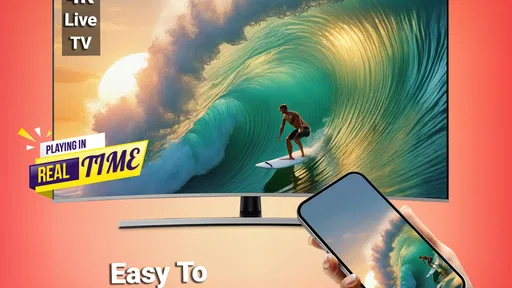
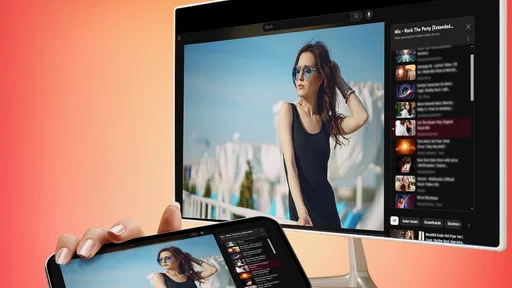
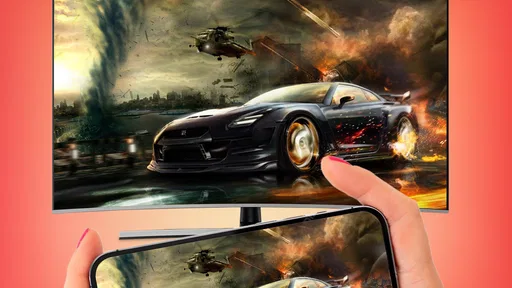
The central capability is screen mirroring: instead of keeping photos, video, or an app confined to a handset display, you can put the phone’s screen on a television. That changes the social side of viewing. A group can look at the same image at once, and you can move through content from the device already in your hand. For an informal get-together, that is often more convenient than sending everyone a link or asking each person to crowd around one small screen.
Mirroring is also different from simply opening a streaming service on the TV. It makes the phone the source and the TV the larger display, so it can suit material you already have on your device or an app you want to show. The trade-off is that whatever you do on the phone remains part of the experience. I would treat this as a flexible way to share what is on the handset, not as a replacement for every TV app or a dedicated streaming device.
Getting a reliable connection in practice
The basic arrangement depends on the phone and television being on the same Wi-Fi network. That is worth checking before you start: if the TV is connected to a guest network while the phone is on the home network, they may not see each other even though both have internet access. A quick look at the network names can save you from repeatedly tapping the connect option and assuming the app is at fault.
Once the devices can find each other, the workflow is intended to be straightforward: connect, choose what you want to show, and keep the phone nearby as the source. My practical tip is to open the photo, video, or page you plan to share before starting the session. It reduces fumbling in front of guests and lets you check that the content is ready on the handset. For a longer video, I would also avoid switching between several demanding apps while it plays, since screen mirroring has to keep the phone and TV in step.
A natural fit for casual viewing
Picture a family member returning from a trip with a collection of photos on their phone. Rather than handing the device around, they connect to the TV and walk everyone through the pictures together. The same approach can work for a short saved clip, a set of images for a club meeting, or a quick demonstration of something on a mobile screen. These are modest jobs, but they are exactly where the convenience of a wireless shared display is easy to appreciate.
For video, the key question is where the content lives and how you normally watch it. If a service already has a native app on your television, using that app may be simpler and can avoid keeping the phone occupied. If the video is stored on your phone or you want to show a screen that does not have a useful TV equivalent, mirroring is the more flexible route. I would choose based on the source of the content, not assume that one method is always better.
Where expectations need a little care
Wireless casting is convenient, but it is not the same as a cable connection. The quality of the session depends on a working connection between the devices, and congestion or a weak signal can make any wireless setup less pleasant. If a picture pauses or responds slowly, I would first check that both devices are on the same network and move closer to the router before blaming the app. For a presentation where every second matters, a wired connection or a TV’s built-in casting option may be a safer choice.
There is another practical trade-off: mirroring uses the phone throughout the session. You may want to keep it available for playback and avoid letting notifications or unrelated activity distract from what everyone is watching. Before sharing personal photos or messages in a group, take a moment to prepare the screen and close anything you would rather not display. That small habit matters more in mirroring than when you send one selected file to a television.
How it compares with familiar alternatives
Compared with opening a video app directly on a smart TV, phone mirroring is broader but less focused. A native TV app is usually the cleaner choice when you only want to watch a supported service; the phone-based approach is useful when you need to show content already on the handset or demonstrate an app. Compared with plugging in a cable, wireless sharing avoids carrying an extra accessory, while a cable can be preferable when the network is unreliable or you need a predictable connection.
Built-in casting tools are another reasonable alternative, particularly if your phone and television already work smoothly together. I would try the option that is already available on your devices before adding another step to a routine. This app makes more sense when you want a dedicated route for connecting the phone to a TV and its simple, direct approach suits your setup. The best choice depends less on a feature checklist than on what you are showing and how often you do it.
Getting Started with Ease
First things first, let’s talk about setup. You know how some apps make you jump through hoops just to get started? Not here. The installation process for Smart TV Cast: Screen Share is a breeze. Simply download from the app store, and you're pretty much halfway there. Once installed, the app guides you through a straightforward setup to connect your phone to your TV. No tech wizardry required.
Interface That Makes Sense
The user interface is a breath of fresh air. It’s clean, intuitive, and doesn’t bombard you with unnecessary options. Everything is where you’d expect it to be, making it super user-friendly. The main screen offers a quick link to connect to your TV, and from there, you're just a tap away from sharing your screen.
Features You Can’t Ignore
So, what exactly can you do with this app? Well, quite a bit! Here’s a quick rundown:
- Mirror your screen: Whether it's photos, videos, or apps, you can mirror them all onto your TV. It’s perfect for showing off vacation snaps or even using your TV as a large monitor for mobile gaming.
- Stream videos: If you’ve got videos saved on your phone, stream them directly to your TV with no lag. The app supports a variety of formats, so compatibility isn’t an issue.
- Wireless connection: No wires, no problem. As long as your TV and phone are on the same Wi-Fi network, you're good to go.
Performance That Delivers
Now, let’s talk performance because, let’s be real, none of these features mean much if the app doesn’t perform well. Fortunately, Smart TV Cast: Screen Share delivers. The connection is stable, and I didn’t experience any significant lag while casting. The video quality remains crisp, and the sound syncs perfectly, making it ideal for binge-watching sessions.
Compatibility Check
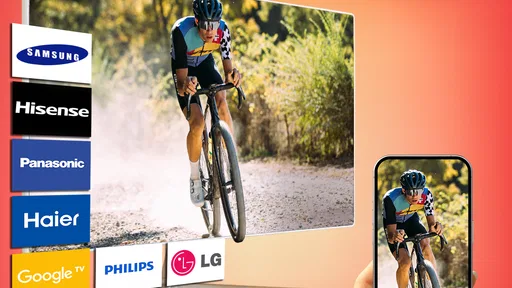
One of the strongest points in favor of this app is its compatibility. It works with a wide range of TV brands, so you won’t be left out in the cold if you don’t own a flagship model. Plus, it supports both Android and iOS devices, making it a versatile choice for families with mixed-device households.
Why You’ll Love It
What I personally love about Smart TV Cast: Screen Share is its simplicity. It doesn’t try to do too much, and it excels at what it’s designed to do. It’s reliable, easy to use, and makes the whole screen-sharing experience smooth and enjoyable. Plus, it’s a great way to enhance family movie nights or share content during gatherings without huddling around a small screen.
Choosing it for your household
I think the strongest match is someone who regularly shares phone-based material with other people: families showing photos, friends replaying a clip, or a small group looking at an app together. It is also a sensible tool to keep in mind when the television is available but the content is already on a phone. The benefit is less about replacing the TV remote and more about making the handset’s screen available to a room.
It is less compelling if you mainly watch subscription services that are already installed on your television, or if you need to work on the phone while a video plays. In those cases, a TV app or a dedicated streaming box is likely to be a more comfortable everyday setup. I would also think twice before relying on wireless mirroring for a formal presentation or a time-sensitive demonstration; a cable or established built-in casting method can be a better fallback when predictability matters more than convenience.
Small habits that make sharing smoother
For a more polished session, I would check the network before guests arrive, open the content in advance, and set the phone’s screen so that personal notifications are not likely to interrupt the viewing. Those steps are simple, but they address the main sources of awkwardness: devices that cannot find one another, a delay while you search for the right item, and private information appearing on a shared screen. If the connection is unstable, reconnecting both devices to the same home network is a more useful first move than repeatedly trying to cast from different screens.
For longer viewing, consider whether mirroring is the right workflow at all. It leaves the phone as the control point, so you may prefer the television’s own player if the same content is available there. For a short clip, photos, or a one-off demonstration, the convenience of keeping the source on your phone can outweigh that limitation. That distinction helps set realistic expectations and makes it easier to choose the right tool for the moment.
What the app’s scale and pricing mean
The app is free to install, with in-app purchases listed from $4.99 to $49.99 per item. I would start with the free experience and decide whether it fits your actual TV and phone before considering any purchase; a casting app is only useful when it connects reliably in your home. Its Everyone age rating makes it suitable for a broad audience, though adults should still prepare the phone before mirroring personal content to a group.
It has a 4.4 average from around 97,000 ratings and over 5 million installs, which suggests that many people have tried it, but popularity is not a guarantee that every television and network combination will behave the same way. The app was released on February 21, 2023, and its current version is 9.5, with Android 7.0 or later required. Those details are useful when checking whether an older device can run it, but I would still judge the experience by a quick real-world connection test.
Final Thoughts
In a world filled with apps that overpromise and underdeliver, Smart TV Cast: Screen Share stands out as an exception. It’s a solid choice for anyone looking to make screen sharing as painless as possible. So, if you're ready to elevate your entertainment game, give this app a try. Trust me, you won’t be disappointed.
My recommendation is more specific: try it when you have a clear phone-to-TV sharing job and a compatible setup, especially for photos, saved clips, or showing an app to people in the same room. If you want a dependable cinema-style setup for frequent long-form streaming, start with the TV’s own apps or another established route instead. For casual sharing, though, having a simple way to put the phone on the big screen can save time and make the content easier for everyone to enjoy.
Verdict
Strengths of Smart TV Cast: Screen Share
- Easy setup with intuitive interface.
- Supports multiple devices seamlessly.
- High-quality screen mirroring.
- No noticeable lag during streaming.
- Compatible with most smart TVs.
Limitations of Smart TV Cast: Screen Share
- Requires stable WiFi for best performance.
- Free version has ads.
- Limited support for older devices.
- Some features require in-app purchases.
- Occasional connectivity issues.
Other Releases by Technoline Apps
View All
Recover Deleted Messages App
Communication4.2
Similar Picks in This Category
View All
Google LLC4.0

Gboard - the Google Keyboard
Google LLC4.5

Google Play services
Google LLC4.3

Google Play Store
Google LLC4.9

Files by Google
Google LLC4.5

SHAREit: Transfer, Share Files
Smart Media4U Technology Pte.Ltd.4.3
Frequently Asked Questions
What is Smart TV Cast: Screen Share and how does it work?
Smart TV Cast: Screen Share is an application that allows you to mirror your smartphone or tablet screen to a compatible Smart TV. It works by connecting your device and TV to the same Wi-Fi network, enabling the seamless casting of videos, photos, and apps for a larger viewing experience.
Is Smart TV Cast: Screen Share compatible with my TV and device?
Smart TV Cast: Screen Share is compatible with most modern Smart TVs and devices running Android or iOS. Before downloading, check the app’s compatibility list or your TV’s specifications to ensure that both your device and TV support screen mirroring functionality.
Are there any subscription fees or in-app purchases?
While Smart TV Cast: Screen Share offers a free version with basic features, there may be in-app purchases or subscription options for advanced functionalities. These might include ad-free use, HD streaming, or additional support for various file formats. Check the app store for specific pricing details.
How secure is Smart TV Cast: Screen Share for my personal data?
Smart TV Cast: Screen Share prioritizes user privacy and security. The app ensures that your data is not stored or shared with third parties. However, users should always review the app's privacy policy and permissions to understand how their data is being used and protected.
What should I do if I experience connectivity issues?
If you encounter connectivity issues with Smart TV Cast: Screen Share, ensure that both your device and TV are connected to the same Wi-Fi network. Restart both devices and try reconnecting. If problems persist, consult the app's support section or contact customer service for further assistance.
